

🧹
CHORES.
💯
GRADES.
✅
GOALS.
🕶️
GOGUNNY!
🧹 CHORES. 💯 GRADES. ✅ GOALS. 🕶️ GOGUNNY!
A Smarter Future Starts with GoGunny!
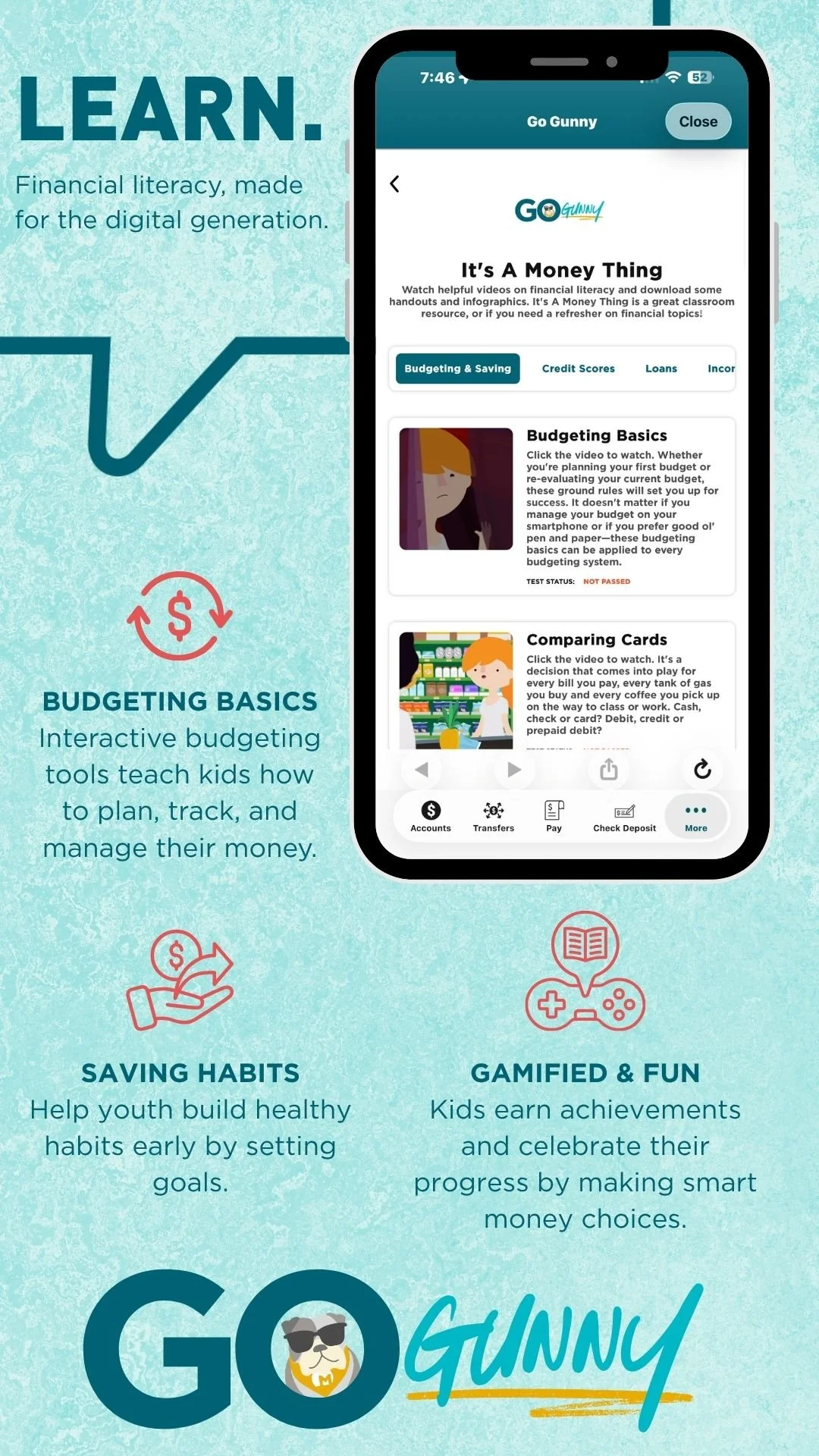
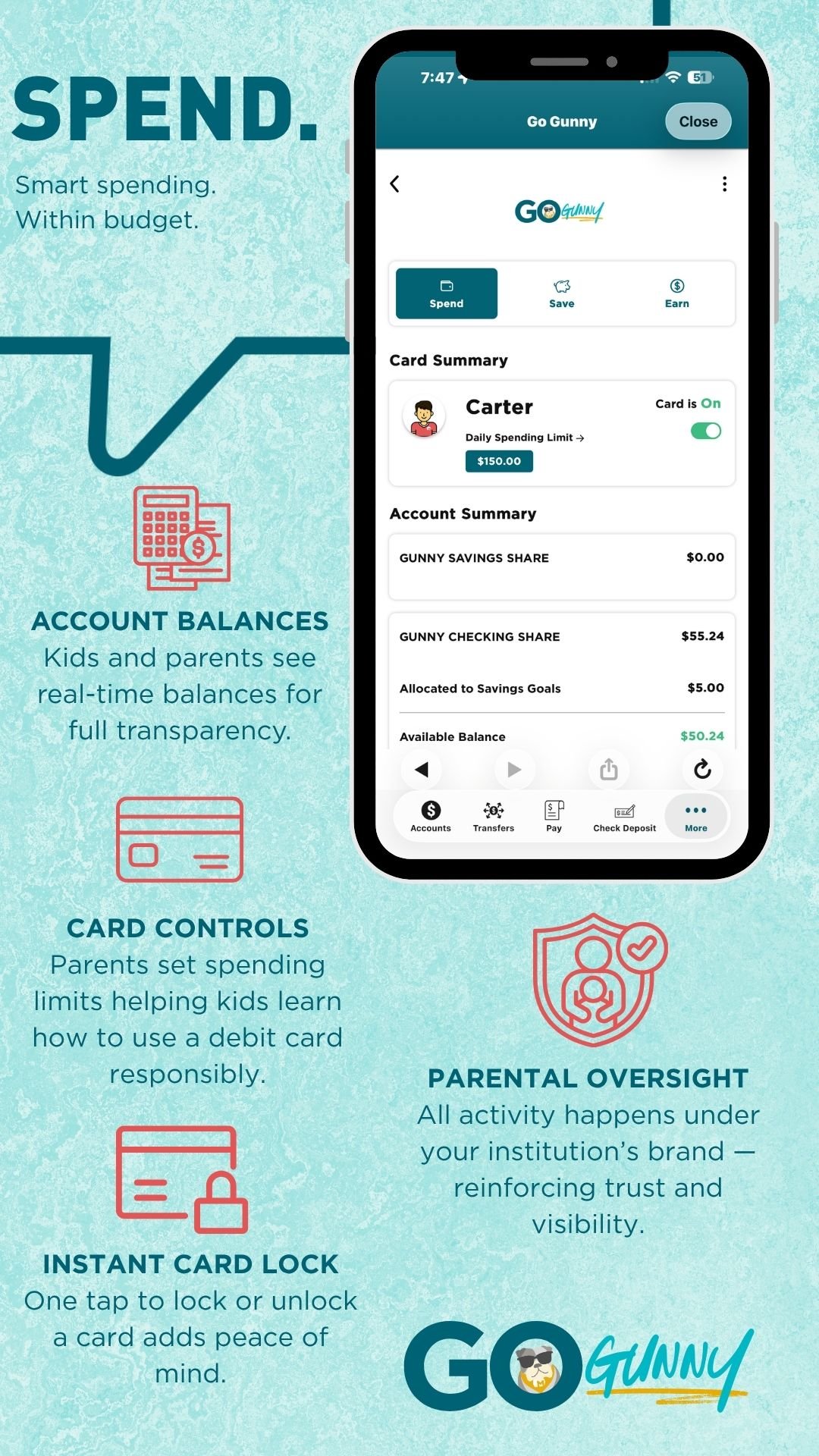
Our youth Gunny members can start building smart money habits by adding GoGunny to their account with a parent or guardian. Available within our digital banking app, GoGunny makes learning about money fun and interactive. Through engaging tools, real-world lessons, and rewards, kids and teens can turn everyday spending and saving into lifelong financial skills.
GoGunny Q&A
-
To get started, both the parent/guardian and youth member must have a Little Gunny or Gunny Savings account.
For accounts with multiple joint owners, GoGunny registration and access are limited to one joint owner.
-
Log in to Digital Banking or the Marine Federal mobile app and locate the GoGunny widget under Additional Services tab. Select GoGunny, complete the registration form, and accept the required disclosures. To add a child or teen, select their account, enter the requested information, and choose an avatar.
-
You can open a Gunny savings account online or visit one of our Marine Federal locations. An adult joint owner is required to open an account for a minor.
-
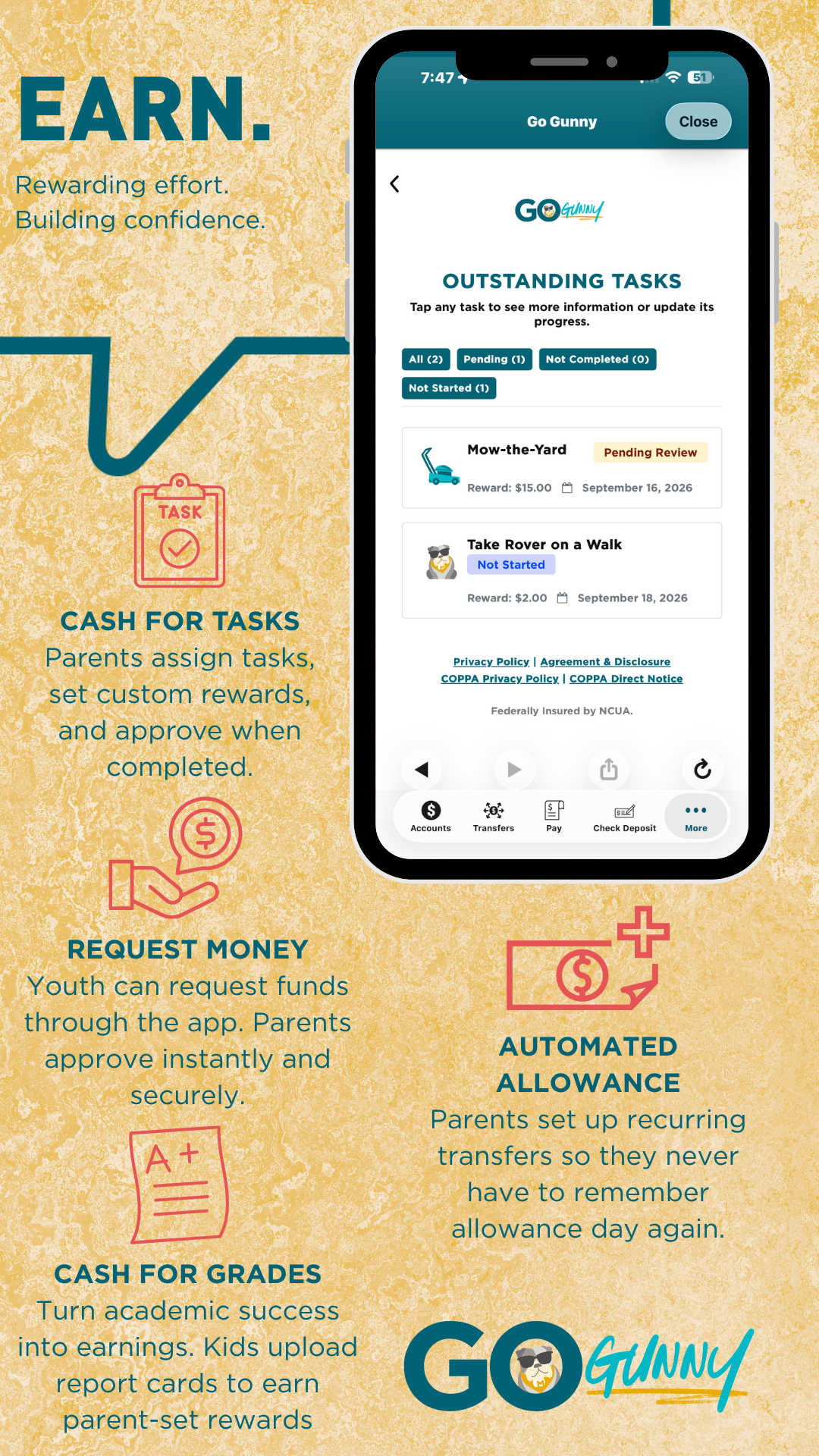
To assign a task log in to digital banking > click additional services> select GoGunny > select child > click Earn tab > choose Task. Then choose a preset or create a custom task, enter the reward, and submit.
Pending tasks will appear under Under Review, to be approved, denied, or request more work.
Gunny members will see assigned tasks in their Earn tab, mark them as complete, and optionally upload photos.
-
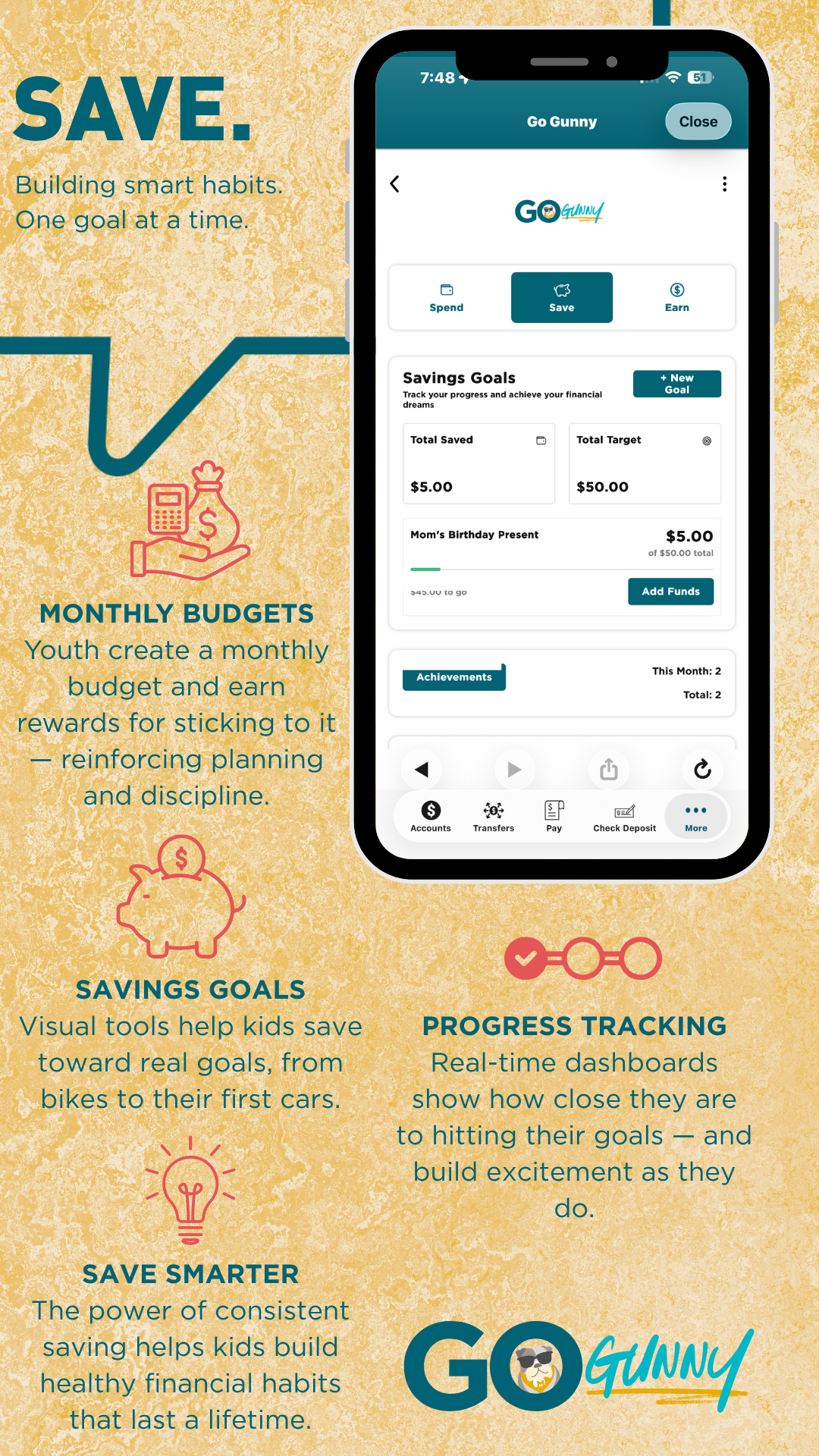
To create or update a budget go to the Save tab > select New Budget and enter deposits, expenses, or savings. Monthly and daily spending is calculated automatically.
To set a savings goal select New Goal, enter description and target amount, and Create a Savings Goal.
To update or track savings goals go to the savings goal, add progress amounts and view updates.
-
To submit report card, select Report Card under the Earn tab, upload a photo, and enter grades.
Parents can review grade submissions and will see pending requests, verify grades, adjust reward amounts if needed, and approve or deny.
-
Yes, by setting up a recurring transfer from your account to your child’s account you can pay an allowance.
To set or change allowance simply go to the child’s profile menu, select Set Allowance, enter amount, frequency, and start date, then confirm.
-
To request money go to the Earn tab and select Request Money, enter reason and amount, then submit. Parents can see pending requests in the child’s profile, then approve or deny. If the parent’s account lacks funds the request will fail with an error message.
The difference between a Money Request and a Loan Request is that a Money Request is one-time funds, that don’t require repayment, while a Loan Request is for a larger purchase, requiring repayment with interest.
-
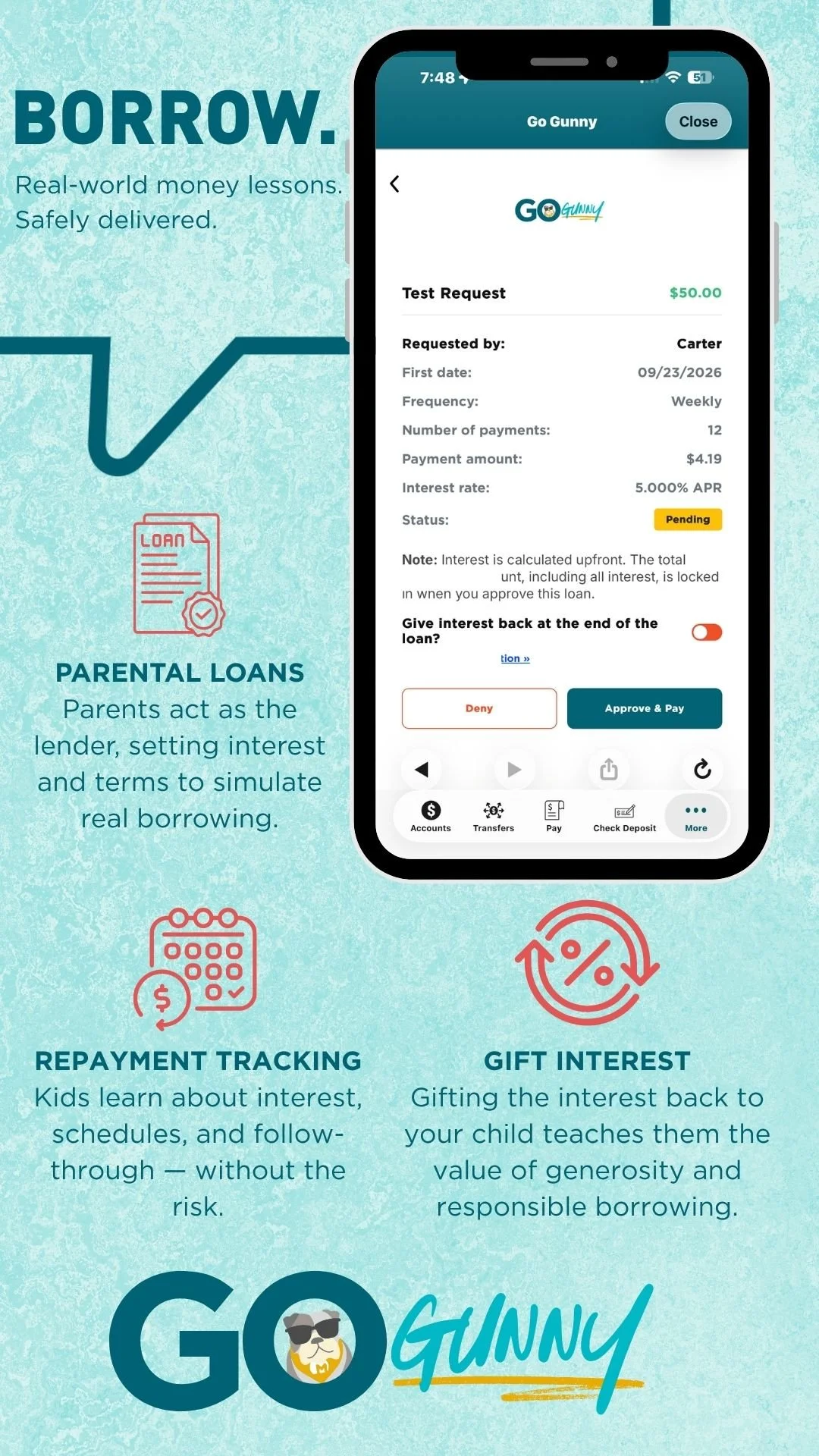
Loans are agreements between parent and child to teach repayment and interest. Parents set terms and interest. Here’s the details:
A loan request can be made by your child submitting a request in the Earn tab, select Request Money, enter a reason request and amount, and toggle Borrower, selects term and repayment frequency, and submits.
Interest rates can be changed for future loans by modifying the interest rate in Settings before approving a new loan.
A loan can’t be canceled after approval. Once approved and funded, the loan must be repaid.
Only one loan may be active at a time.
If a child misses a payment, parents can transfer funds from the child’s account or make payments manually.
Interest from a loan is deposited into the approving parent’s account.